Drivers pick the terminal they're waiting at. Its outline on the map (its geofence) is how Demurly knows the truck is at the terminal: a wait ends on its own once the truck has left it, and each record's GPS evidence is checked against it. Team members can see terminals; admins add and change them.
Add a terminal
On Terminals, click Add Terminal.
- Find a terminal: search the IRS list of registered fuel terminals by company, city, state or terminal control number (TCN), and click Add. You don't need the TCN: a company and a city work.
- Custom terminal: for a rack, bulk plant or site that isn't listed. Enter its name and address, click Find address on map (or Use my current location), and click Add terminal. Only your company sees it, and anyone you send a record from it.
Click a terminal to give it your own name (the pencil next to Custom Name) or remove it.
Draw its outline
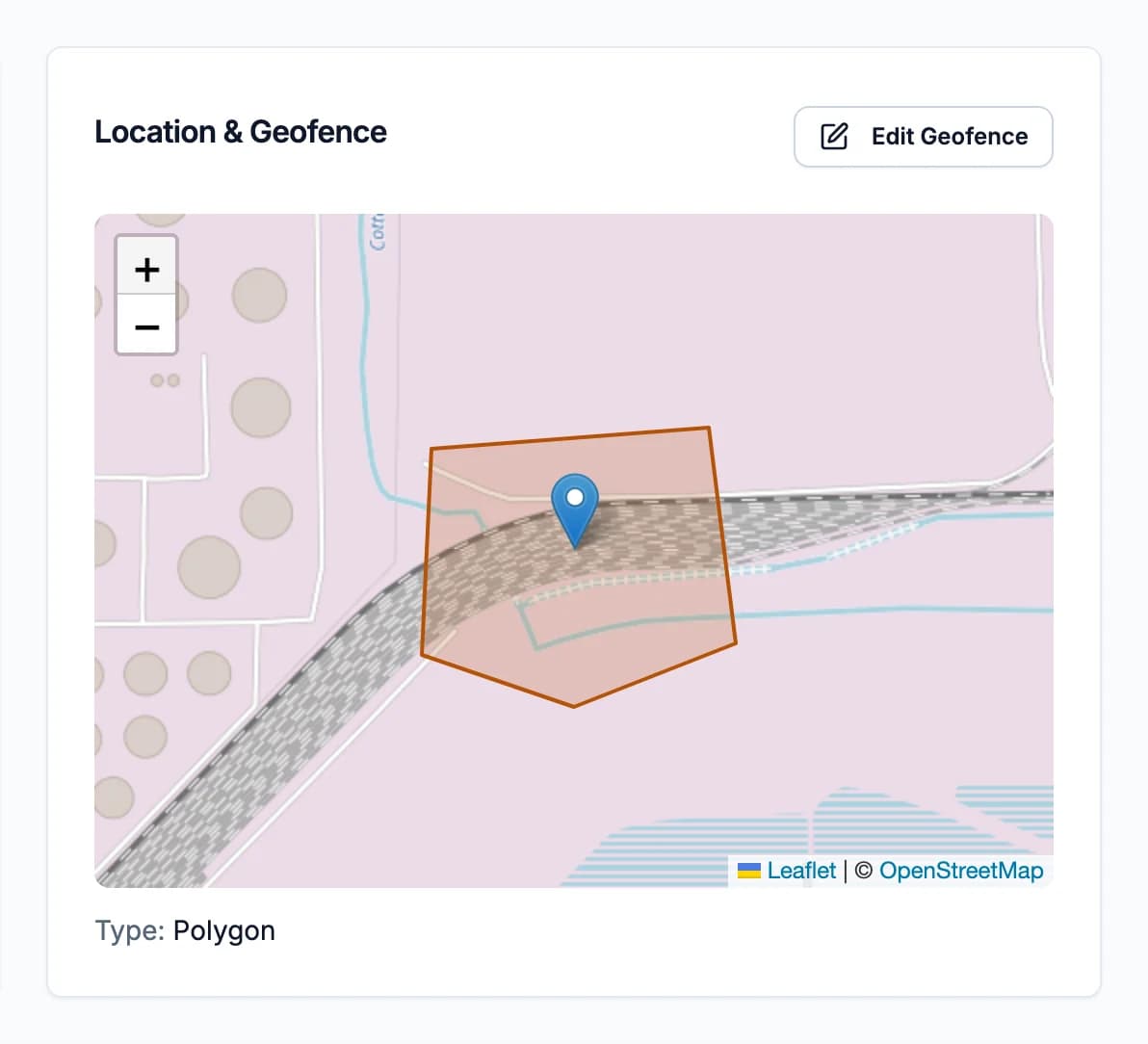
A new terminal starts with a circle around its pin (500 m unless you set another radius). For a better fit, open the terminal and click Set Geofence (or Edit Geofence):
- Circle: set the radius.
- Draw outline: go around the area where trucks wait and load. Tap the map to add corners; drag a corner to move it, or the small circle on an edge to add one there; tap a corner and Remove corner to take it out. With a keyboard: Tab to a corner, Enter selects it, the arrow keys move it (hold Shift for bigger steps) and Delete removes it; Enter on an edge's small circle adds a corner there. Satellite is the default view (images can be a few years old: check the street map too); Use my location helps when you're standing there.
Click Save geofence. An outline needs at least 3 corners, can't cross itself, and must be big enough for a truck (and no bigger than 20 km²).
Add zones
Zones are areas outside the outline that still count as being at the terminal: the line at the gate, a staging lot across the road, a second loading area. On the terminal's page, click Add zone, name it, choose its kind, draw it, and if you like add a buffer (up to 200 m, handy for a line along a road). Up to 20 zones per terminal. Removing a zone affects new waits only.
How it's used
- Automatic stops: once the truck has been at the terminal (inside the outline or a zone), the wait ends when GPS shows it outside for about 3 minutes, backdated to when it left. See Record a wait.
- Evidence: each record notes whether the wait started and ended inside the site, and its map shows the outline.
Fuel buyers
You can keep your own list of the terminals you buy from, with outlines and zones, for your reference. Records are checked against the carrier's outlines, not yours: look at each record's map and GPS evidence before approving.