Everyone at your company signs in with their own login, as an admin or a member. Admins manage the team under Settings > Members & roles.
What each role can do
- Carrier admin: everything, including settings, rates, drivers, terminals, customers, payouts, billing and the team.
- Carrier member: review records, fix their details and send them to customers; see drivers, terminals and reports.
- Fuel buyer admin: everything, including settings, maximum rates, carrier connections, terminals and the team.
- Fuel buyer member: review, approve (up to your company's approval limit), dispute and pay charges; see carriers and reports.
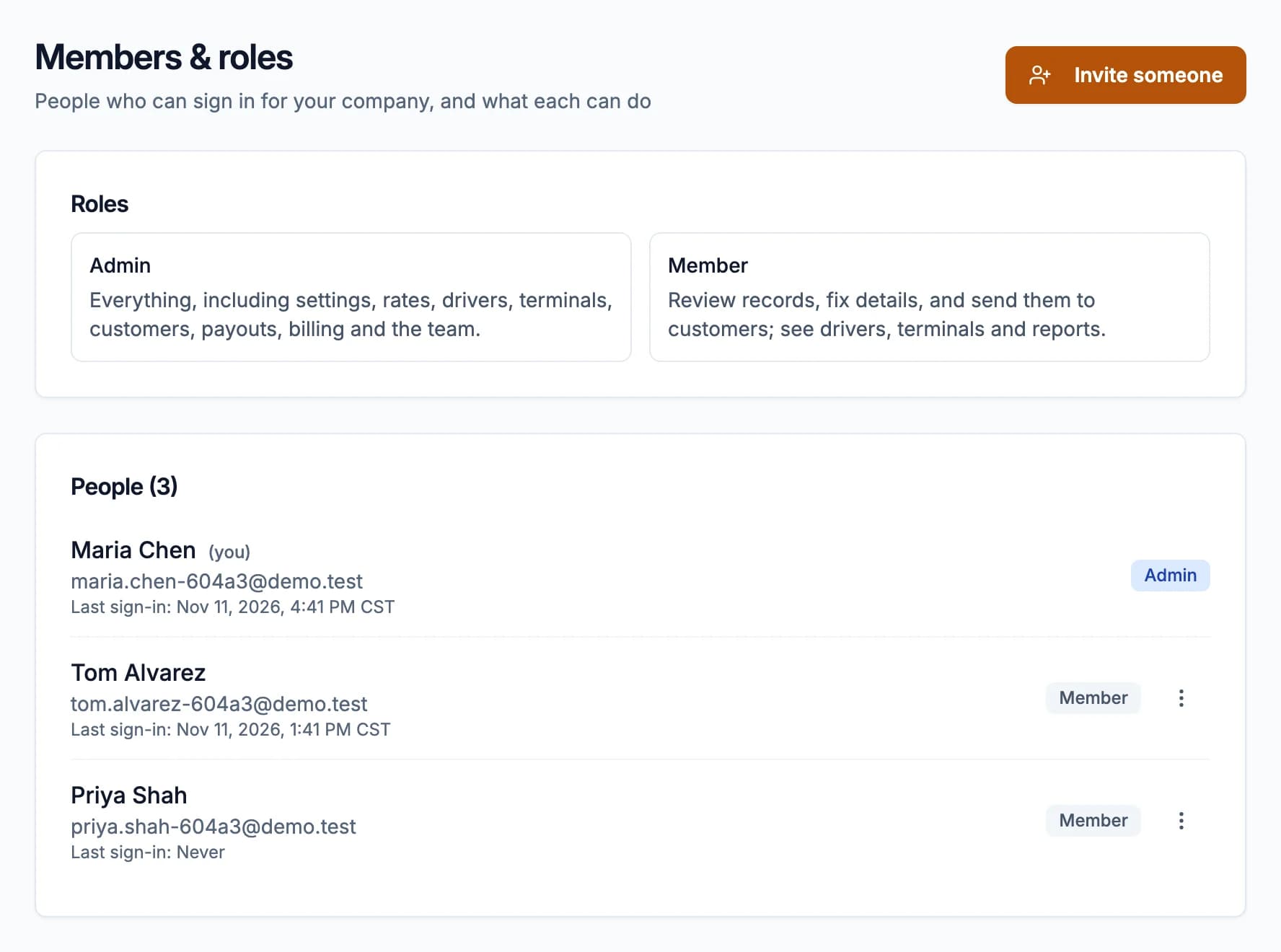
Members can open their own Settings pages (Your profile, Sign-in & security, Notifications); the rest are for admins. Drivers aren't team members: they sign in to the driver app (see Add and manage drivers).
Invite someone
- Go to Settings > Members & roles and click Invite someone.
- Enter their email address and choose Member or Admin.
- Click Create invite. Demurly emails them a link to create their login; it works for 7 days.
Inviting needs two-step sign-in on your account. Invites waiting lists invites not yet used: New link makes a fresh link (the old one stops working), and Revoke cancels the invite.
The person opens the link, enters their name and a password and clicks Join the team. A new admin sets up two-step sign-in on their first sign-in.
Change a role, or remove access
Open the ⋮ menu on someone's row:
- Make admin or Make member
- Deactivate: they can no longer sign in; what they did stays on the records. Reactivate lets them back in.
People can't be deleted, only deactivated. You can't change your own role or deactivate yourself, and your company always keeps at least one active admin. Making someone an admin, deactivating or reactivating needs two-step sign-in on your account.
Single sign-on
On Enterprise, people at your company's email domains can sign in with your identity provider and join automatically, as members or admins (you choose). See Settings > Single sign-on.